Sideload an app on iOS
It is possible to install apps on an iPhone even when they are not available on the App Store, using an .ipa installation file provided by the developer or a third party. Here, we'll cover different methods to install these apps on your phone.
🤓 This article won't cover the new sideloading methods introduced by Apple for European Union members, as they are not particularly interesting at this time. Many other solutions exist, but the following are among the easiest to set up.
| Software/tool | Category | Advantages | Disadvantages | Requirements |
|---|---|---|---|---|
| SideStore | Third party App Store |
| A PC or Mac | |
| SideStore + Live Container | Third party Hybrid App Store |
| Apps running inside a container take longer to open, and some may encounter issues and crash (you can install them outside the container in this case, but they will be subject to the app count limit) | A PC or Mac |
| Impactor | App installer | Quickly install any app from a computer |
| A PC or Mac |
| Sideloadly | App installer | Quickly install any app from a computer |
| A PC or Mac |
| AltStore World / Classic | Third party App Store |
| A computer with the AltServer software must be present on your network during app installation and on each refresh | A PC or Mac |
| Feather + Certificates | Third party App Store |
| You must use a paid certificate sold by a third party (which can be revoked at any time), or an Apple Developer license ($99/year) | |
| AltStore PAL / Europe | Third party App Store | Everything. | Live in the EU |
Prerequisites
#If the method you want to use requires a PC and yours runs Windows, you will need to install iTunes from Apple's website. The version available on the Microsoft Store will not work.
If you are on iOS 16 or later, you will need to enable Developer Mode in Settings → Privacy & Security → Developer Mode. This step will ask you to restart your device, it only needs to be done once, and no data will be erased from your iPhone.
👨💼 You will also need an Apple account to use with the software, allowing it to communicate with Apple's servers. You can use a secondary/throwaway account, even if it has never been signed in on your device.
Definitions
#Source
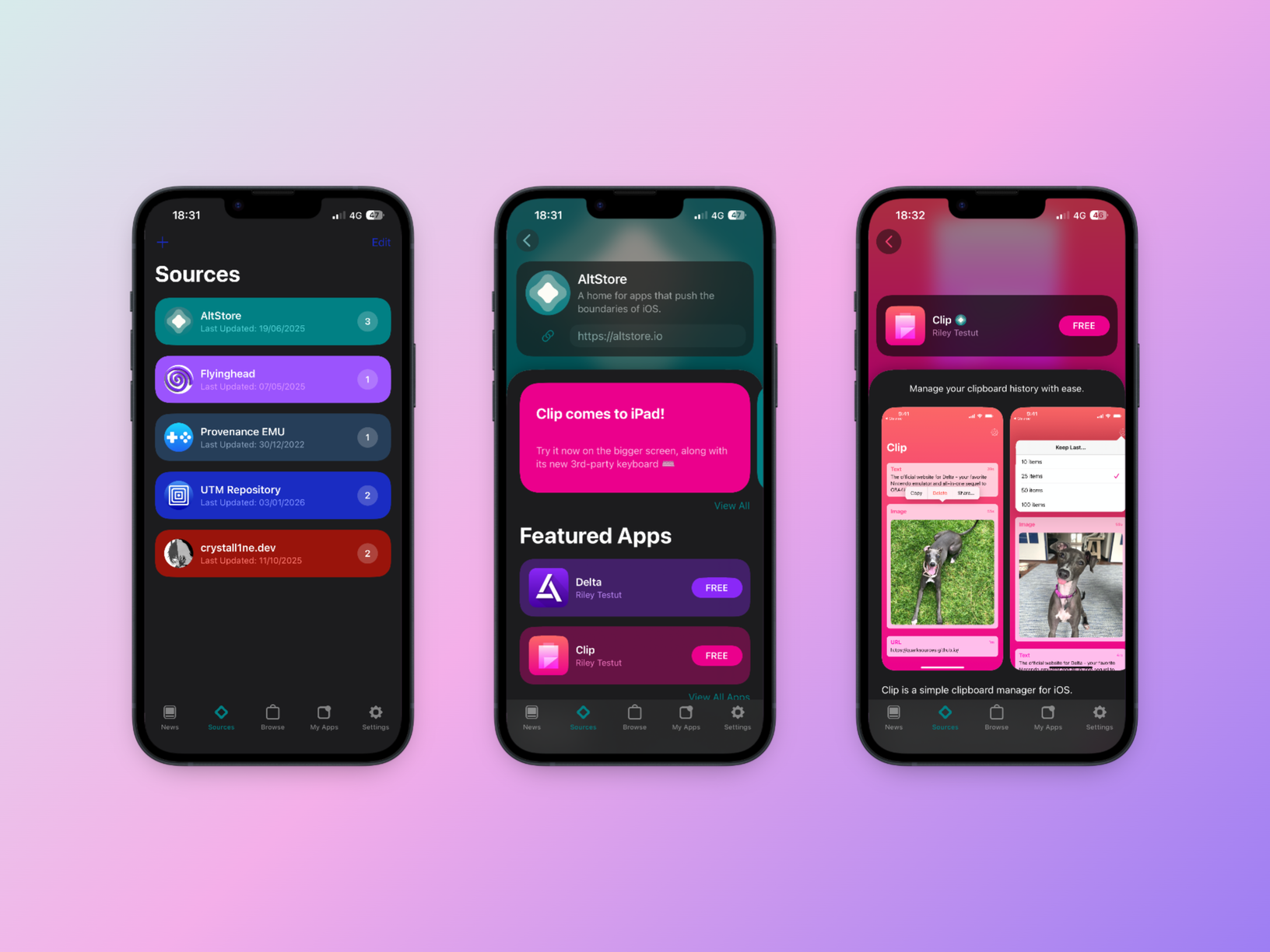
#A source is a way to add a dynamic list of applications to a third-party app store. This feature notably enables faster update installation. Stores like AltStore and SideStore support adding sources via a URL. For example, you can access my apps here.
App count and time limits
#If you are not using a paid Apple Developer account ($99/year) or a third-party certificate, you are subject to Apple's restrictions on installing apps outside of the App Store.
- Three active apps: each device is limited to a maximum of 3 apps installed via sideloading. App stores (such as AltStore or SideStore) count toward this limit themselves, leaving you with only two slots for your
.ipafiles. With Live Container, you can run apps inside it, partially bypassing this limitation. - One week before expiration: 7 days after installing an app, it will expire and refuse to open (data are not deleted). To avoid this, you will need to "refresh" it before the deadline. This step can be automated if you use an app store.
Disclaimer
#Sideloading opens the door to apps that Apple has rejected or even banned, and sometimes for good reason. Security vulnerabilities can still exist on iOS, and apps can exploit them without you ever granting them a permission.
- Be careful if your iPhone model or iOS version is old (e.g. iOS 26.1 which includes a vulnerability in the iTunes Store).
- Verify the apps and sources you install. Prefer projects available on GitHub over apps already on the App Store or those that are closed-source.
- Use a secondary Apple account to avoid any issues with your main account, although this should not happen.
🔕 Some app features will not be available, such as push notifications, Live Activities, or adding widgets to the home screen.
Which method should you choose?
#| If you want... | The ideal solution is |
|---|---|
| Absolute simplicity (just one app for a short time) | Impactor or Sideloadly |
| To avoid connecting to your PC each time you install an app | SideStore |
| To avoid connecting to your PC each time you install an app, and being able to install more than three | SideStore + Live Container |
| No constraints at all | Feather + Paid Certificate |
Step-by-step tutorials for each method
#Install SideStore
#SideStore is a "fork" of AltStore with one major advantage: once installed, you no longer need a computer to install or refresh your apps. It uses a local VPN to trick the iPhone into thinking it is communicating with a development server. Based on this tutorial.
⚠️ Apple recently made changes in iOS 26.4 that prevent SideStore from working. You can follow this issue for more information.
- On your PC, download and open the iloader software. It will be used to install SideStore in the first step.
- In iloader, enter your Apple ID credentials in the designated field and click "Login".
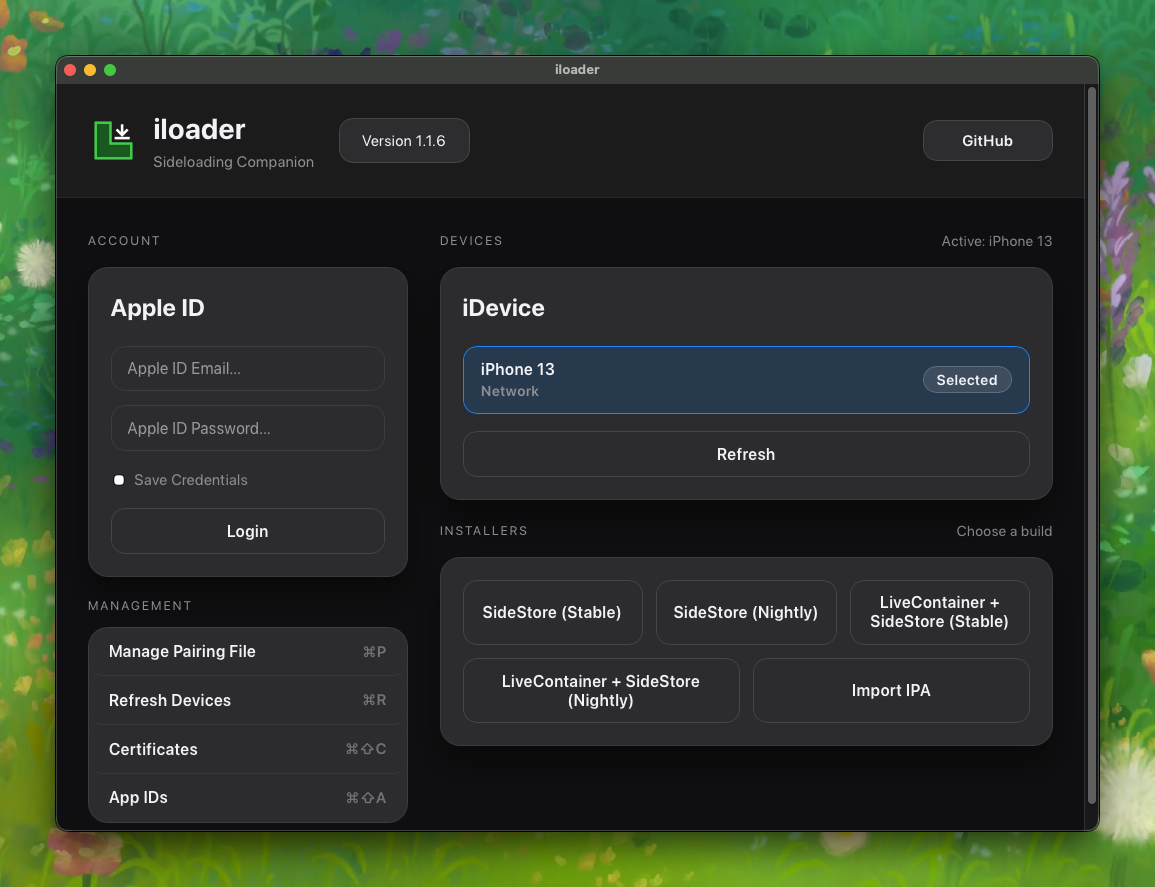
- Plug your iPhone into your computer and click its name in the device list to select it as the target. If it doesn't appear, you can use the "Refresh" button to reload the device list.
- Under "Installers", choose "SideStore (Stable)" and proceed with the installation.
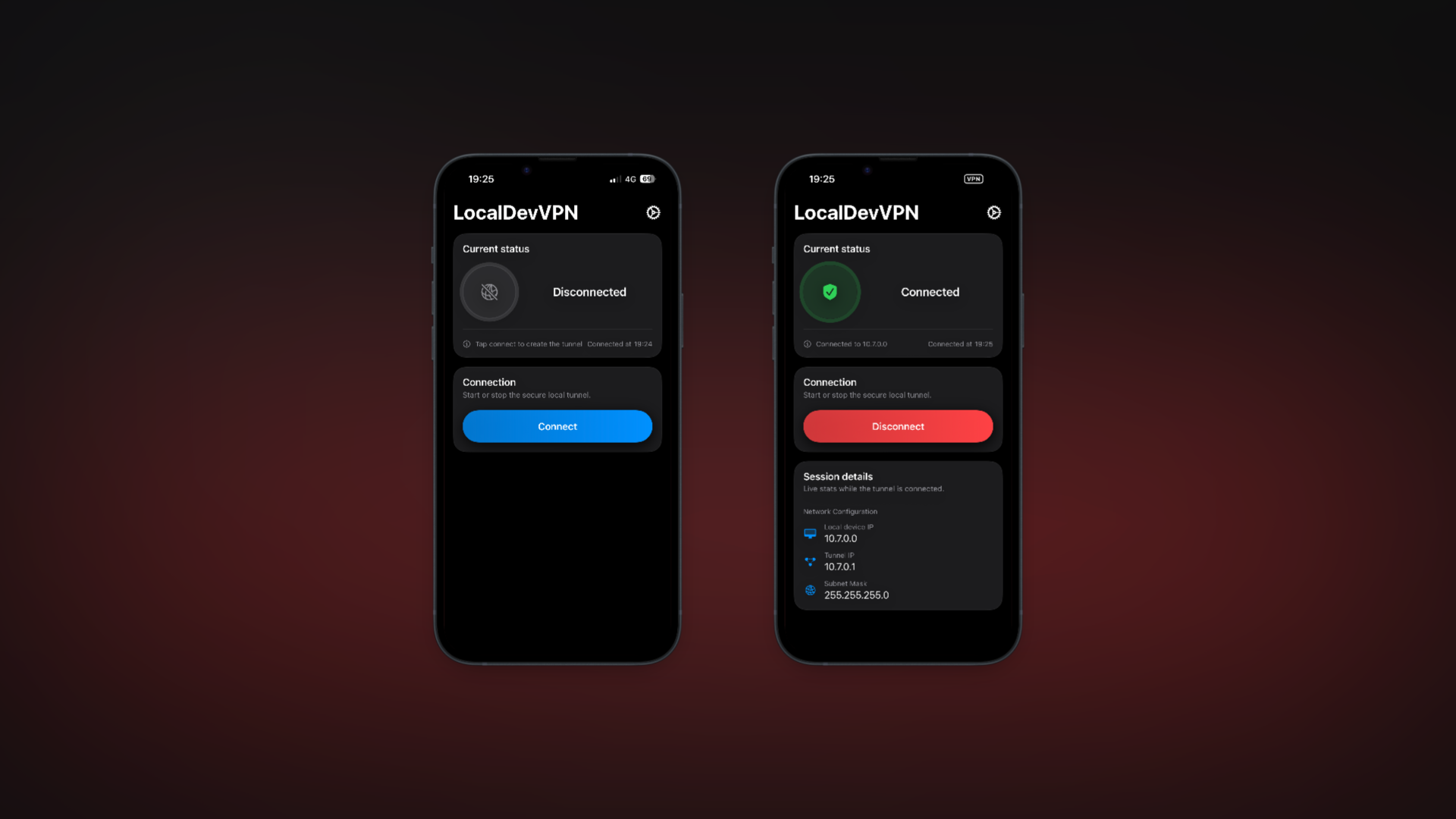
- In parallel, you can download LocalDevVPN from the App Store on your iPhone. You will need to open this app and activate it each time you install or refresh an app.
- To allow SideStore to open, you will need to go to Settings and navigate to General → VPN & Device Management → your email address → Verify App.
- Open LocalDevVPN and tap "Connect", then allow the addition of a new VPN configuration.
- Now open SideStore and navigate to "My Apps". You should see that SideStore expires in "7 DAYS". Start your first refresh by tapping that button and sign in with the same Apple account used in iloader.
SideStore is ready to use! You can now install whatever apps you want, within the two remaining slots. To install as many apps as you like inside containers, you can replace it with Live Container.
💡 To avoid having to think about refreshing SideStore, you can use the Shortcuts app to create an automation that does it for you at a set time, for example. To do this, you will need to enable "Background Refresh" in SideStore's settings.
Replace SideStore with Live Container
#⚠️ Apple recently made changes in iOS 26.4 that prevent SideStore from working, with or without Live Container. You can follow this issue for more information.
- If you haven't already installed SideStore, go back and complete all the necessary steps.
- On your iPhone, download "LiveContainer+SideStore.ipa" from the Live Container GitHub repository. The "Nightly" build includes more features and is more recent, but is experimental and not recommended for everyone.
- Open SideStore and navigate to "My Apps". Use the "+" button in the top left to install the previously downloaded file.
- If a prompt asks you whether to keep App Extensions, choose "Keep App Extensions (Use Main Profile)".
- Once the installation is complete, open Live Container from your phone's home screen.
- Open SideStore from the icon in the top left of Live Container. You will be asked for a "pairing file": you can find it by navigating in your files to "On My iPhone → SideStore" and selecting
ALTPairingFile.mobiledevicepairing. - Sign in again with your Apple account, the same one used in iloader, and wait while SideStore replaces itself with Live Container.
- Once done, fully close Live Container and reopen it to switch containers. Navigate to "Settings" and tap "Import Certificate from SideStore".
- Verify that the replacement went smoothly with "JIT-Less Mode Diagnose" then "Test JIT-Less Mode".
- You can now install any apps you want inside Live Container without limits, and in SideStore with limits.
Install with Impactor
#- Download Impactor on your computer from their GitHub repository.
- Once the app is open, drag an
.ipainstallation file into it and select your iPhone from the list in the top right.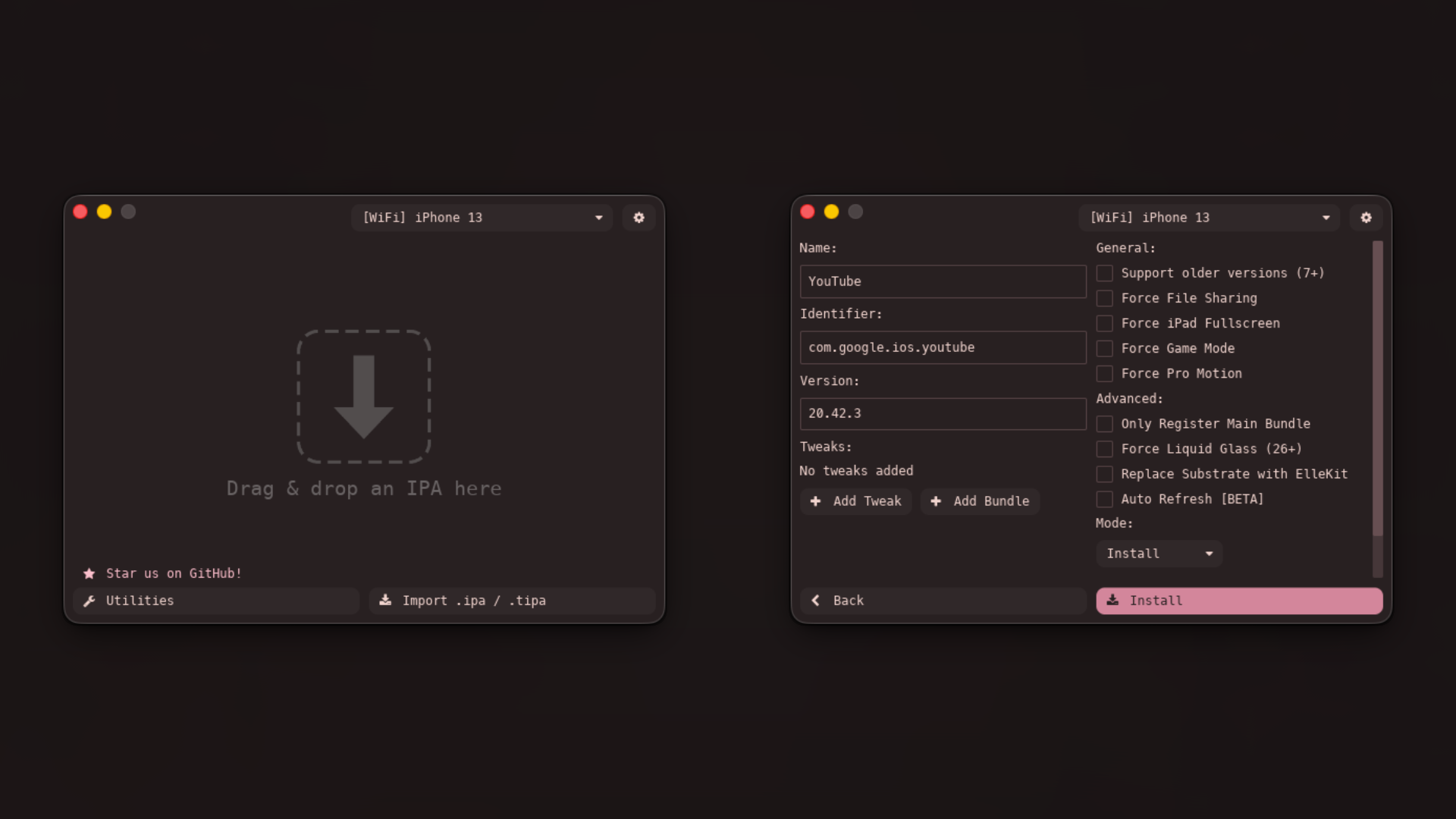
- Click "Install" and enter your Apple account credentials to proceed with the app installation. This step is required to allow the software to ask Apple's servers to generate a signature for the app you are installing.
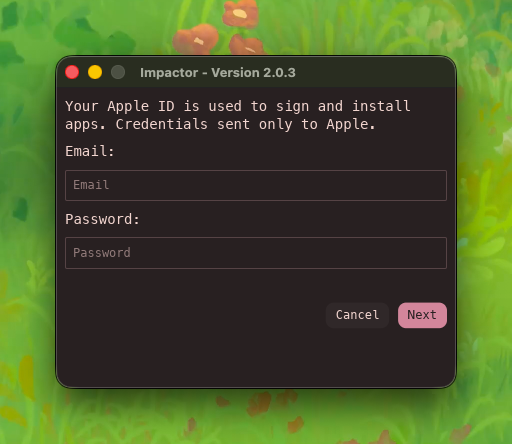
- A few minutes later, you will find the application on your iPhone's home screen. If not, an error will be shown in the software, feel free to search for a solution (or switch methods).
- Before opening the app, go to Settings and navigate to General → VPN & Device Management → your email address, then tap Verify App.
⚠️ The app will expire after 7 days. After that, you will no longer be able to open it without reinstalling it with Impactor or another tool. An experimental feature is available in Impactor to attempt an automatic refresh when your computer is on and connected to the internet, but it does not guarantee a reliable renewal.
Install with Sideloadly
#- Download and open Sideloadly on your PC: Windows 64-bit; Windows 32-bit; macOS.
- Plug your iPhone into your PC and select it from the list below the "iDevice" text. Click the "IPA" button and select an installation file. Enter the email address of an Apple account under "Apple ID" (even if it has never been signed in on your device), then click "Start".
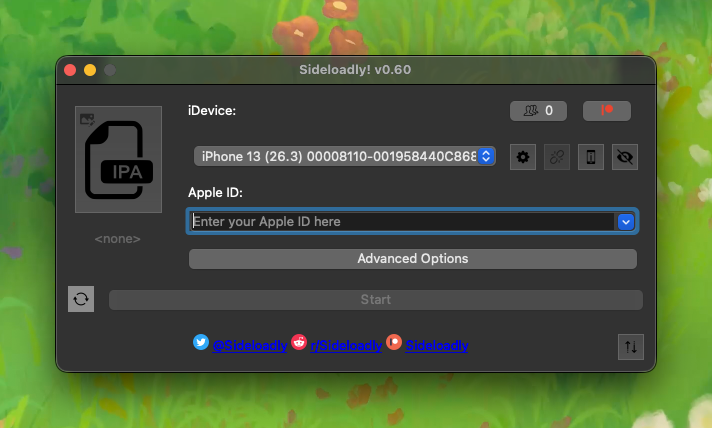
- A window will appear asking for your Apple account password. This step is required to allow the software to ask Apple's servers to generate a signature for the app you are about to install. You can use a secondary/throwaway account if you wish.
- A few minutes later, the app will be installed on your iPhone. If not, an error will be shown in the Sideloadly software, feel free to search for a solution (or switch methods).
- Before opening the app, go to Settings and navigate to General → VPN & Device Management → your email address, then tap Verify App.
⚠️ The app will expire after 7 days. After that, you will no longer be able to open it without reinstalling it with Sideloadly or another tool.
Install AltStore
#- Download AltServer (World) for Windows (10 and above) or macOS (Big Sur and above).
- Once installed, run it on your computer, then plug in your iPhone. You may need to accept the connection request by entering your phone's passcode if prompted.
- Locate and click the icon in your computer's taskbar/menu bar.
- Hover over "Install AltStore..." and select your iPhone from the list.
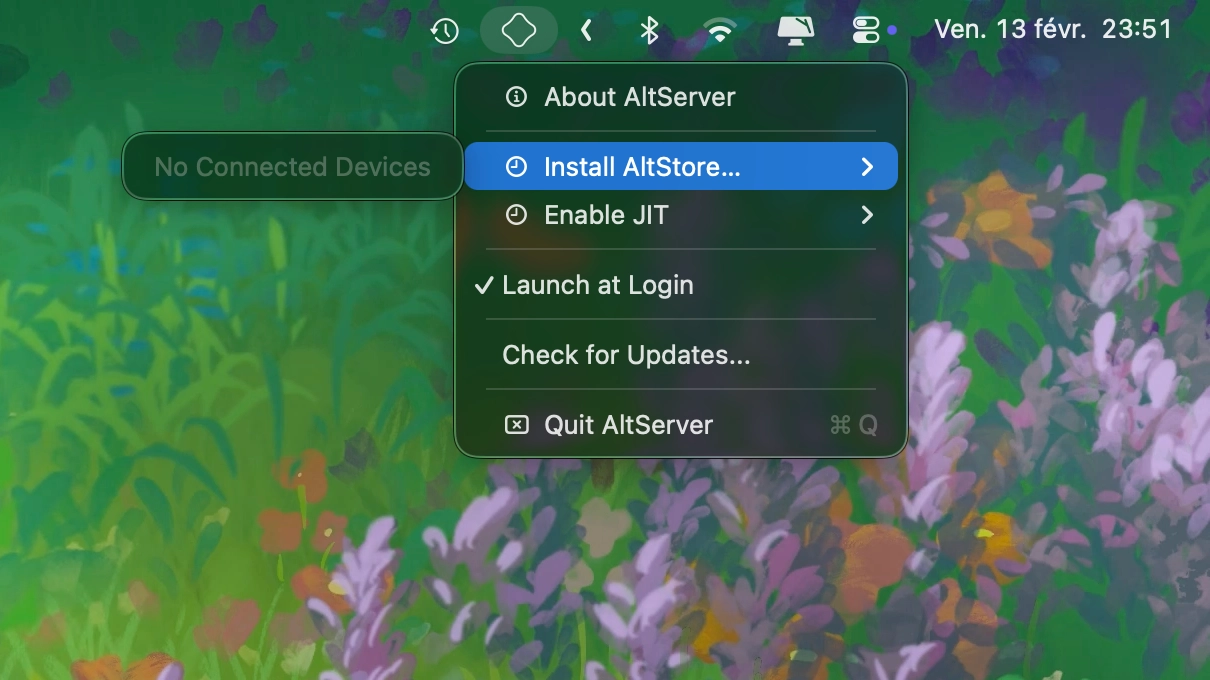
- AltServer will ask you to enter the email address and password of your Apple ID. This step is required to allow the software to ask Apple's servers to generate a signature for installing AltStore on your iPhone. You can use a secondary/throwaway account if you wish.
- Wait about 30 seconds until AltStore appears on your home screen. Keep your iPhone plugged into your computer. Once the icon is visible, open the Settings app and go to General → VPN & Device Management → your email address → Verify App.
- You can now open AltStore on your phone. On first launch, the app may ask you to sign in to your Apple account again, the same one entered in AltServer on your PC.
⚠️ After 7 days, installed apps can no longer be opened. You can counter this limitation within the AltStore app by using the Refresh button on the "My Apps" page, as long as your PC is still turned on, connected to the same network as your phone, and running AltServer.
- Twitter: @Johan_Stickman
- GitHub: @johan-perso
- Telegram: @johanstick